Free Facebook Reels Transcription Tool: Generate SRT and TXT
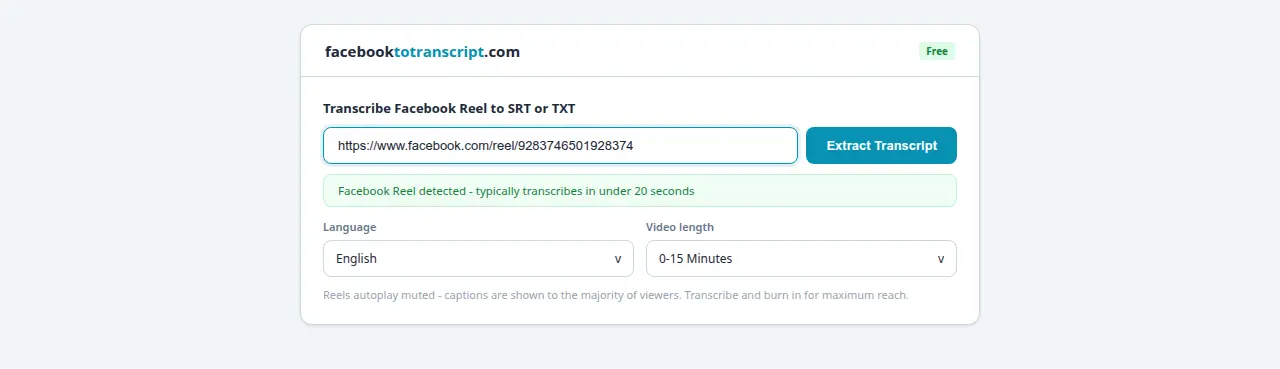
Reels autoplay muted. That is the default, not a quirk. A Reel without captions plays as a silent video for most of its audience. This guide covers how to transcribe any Facebook Reel to SRT or TXT in under 20 seconds, burn captions into the video, and repurpose short-form spoken content into written formats.
Rida Mehwish
Software Developer at Codingtron · Vehari, Pakistan
Builder of Facebook to Transcript. Writes about AI transcription, video accessibility, and practical workflows for content creators and researchers.
Why Captions on Reels Aren't Optional
Facebook's internal research found that 85% of its videos are watched without sound. For Reels, which autoplay muted as users scroll, that percentage is almost certainly higher. The first few seconds of a Reel play silently — captions are what the viewer reads to decide whether to tap for audio or keep scrolling.
Meta's creator tools documentation found that captioned video ads see 12% longer view times than uncaptioned equivalents. Organic Reels follow the same viewer behavior. Captions hold attention because they communicate value before the viewer has committed to unmuting.
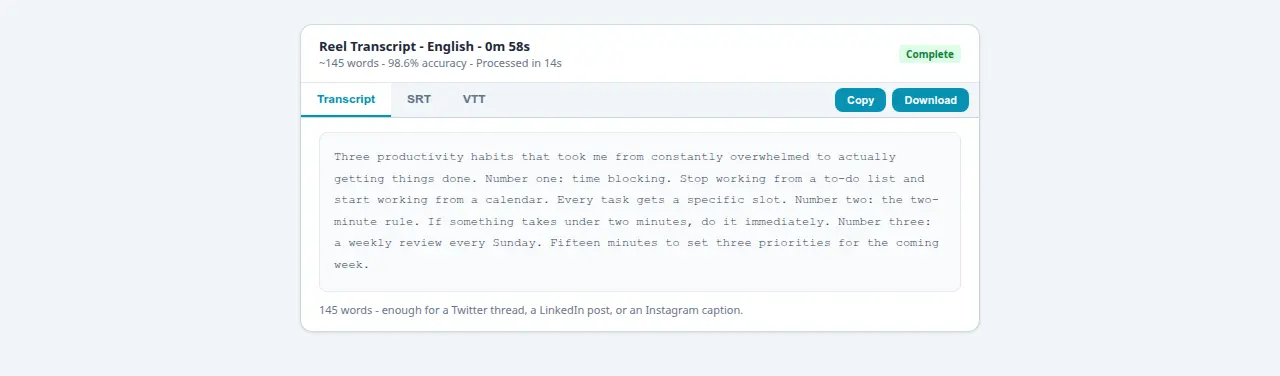
There's a repurposing angle too. A 60-second Reel contains 100–150 words of spoken content — enough for a standalone LinkedIn post, a Twitter thread hook, or an email newsletter opener. Without a transcript, that text is locked inside the video file. With one, extracting it takes about two minutes.
How to Transcribe a Facebook Reel: Three Steps
Step 1: Copy the Reel URL
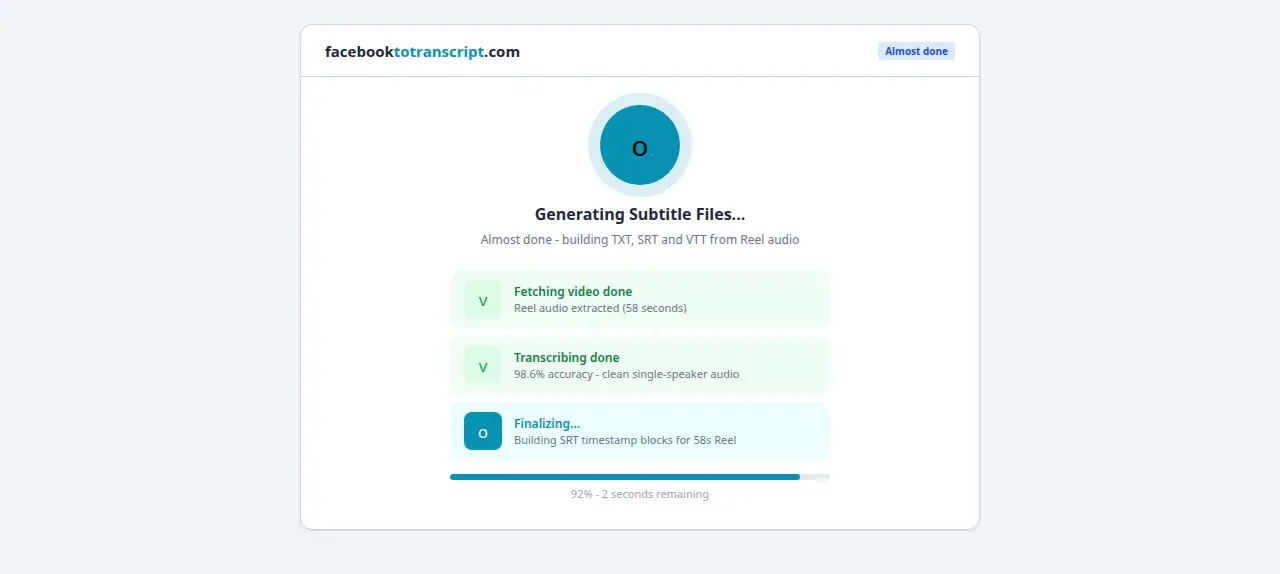
Open the Reel on Facebook. Tap the three-dot menu and select Copy Link. Or open the Reel in its own tab and copy the URL directly. Reel URLs typically follow the format https://www.facebook.com/reel/1234567890.
Step 2: Paste and Process
Go to the Facebook to Transcript homepage, paste the Reel URL, and select the spoken language. Reels are short — most finish processing in 10–20 seconds.
Step 3: Review and Download
Read through the transcript. Most Reels need zero corrections or one word fixed. Download TXT for content repurposing, or SRT if you're adding captions to the video.
Accuracy to Expect from Facebook Reels
Reels consistently produce the highest transcription accuracy of any Facebook content format. The structural reasons: they're short (15–90 seconds), almost always feature a single speaker who recorded close to the camera, and the creator's voice is in the foreground with minimal competing audio. That's close to ideal conditions for a speech recognition model.
📊 Accuracy by Facebook Content Type
- Reels (original audio, quiet space): 97–99% — single speaker close to mic
- Standard video posts (indoor, good mic): 96–99% — controlled conditions
- Facebook Live (quiet room): 94–97% — live variables add some uncertainty
- Facebook Live (outdoor/event): 85–93% — background noise degrades signal
- Reels with heavy competing music: 75–90% — vocal/music mix reduces clarity
Two accuracy risks specific to Reels: heavy background music that competes with the vocal, and trending audio overlays where a creator lip-syncs rather than speaking directly. For original-audio Reels where the creator is speaking their own content into the camera, accuracy is about as good as current ASR technology gets.
For a detailed breakdown of what drives accuracy across all Facebook video types, see the AI-powered transcription explainer.
Adding Captions to Reels: The CapCut and Premiere Workflow
Facebook doesn't support direct SRT file uploads for Reels (unlike standard video posts). To add captions, you need to burn them into the video file using an editor. Here's how to do it in the two most common tools:
Using CapCut (Mobile or Desktop)
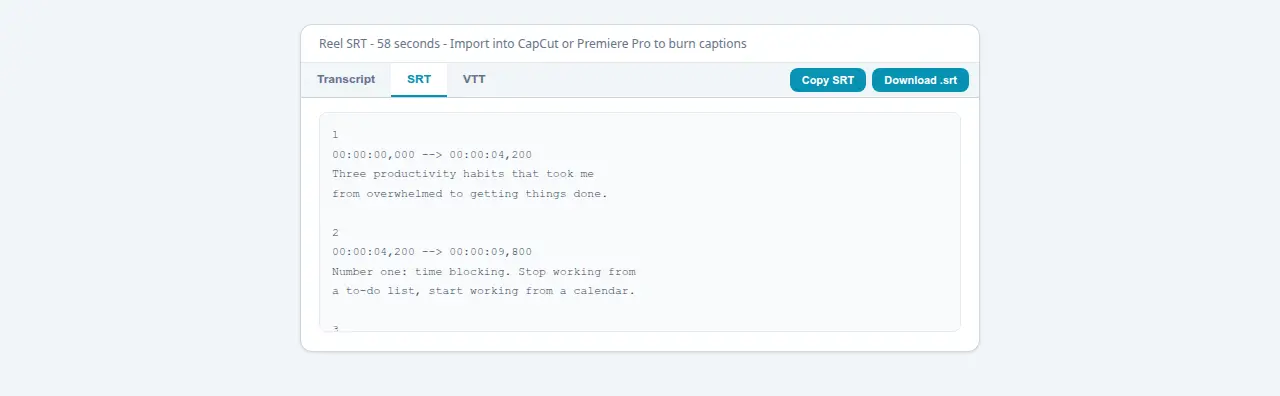
Download the SRT file. Open your original Reel video in CapCut. Tap Text → Import Subtitles and select the SRT file. CapCut positions captions automatically based on the timestamps. Adjust font, size, and color to match your branding, then export and re-upload as a new Reel.
Using Premiere Pro or DaVinci Resolve
Import the SRT into your Premiere project: go to Captions → Create New Caption Track and import the file. In DaVinci Resolve, use the Subtitle Track on the Edit page. Style the captions in the Caption Inspector panel, then export with captions burned in.
📄 SRT vs VTT vs TXT — Quick Reference
- SRT: Import into CapCut, Premiere Pro, DaVinci Resolve, Final Cut Pro — use this for Reels captions
- VTT: For HTML5 video players and web embedding — not needed for Reels
- TXT: Plain text with no timestamps — best for repurposing into social posts, newsletters, or blog content
For SRT formatting details and how to upload captions to standard Facebook videos (which does support direct SRT upload), see the SRT subtitle generator guide.

What to Do With a Reel Transcript Beyond Captions
Once you have the TXT, 100–150 words of clean spoken content can go a lot of places:
- Twitter/X thread: Break the Reel's key points into a numbered thread. A 5-point Reel becomes a 5-tweet thread with minimal editing.
- LinkedIn post: Expand the central idea with a bit more context and a personal example. LinkedIn rewards longer posts, and the transcript gives you a complete first draft.
- Email newsletter hook: Pull the most valuable insight as the lead line and link back to the Reel. Short, high-value opening that drives views.
- Quote graphic: Extract one strong sentence for a static image post on Instagram or Pinterest. Takes 3 minutes in Canva.
- Compile into a long-form article: Gather transcripts from 5–10 related Reels on the same topic and combine them into a structured blog post. Individual clips become sections of a full article.
The audio-to-text converter guide for social media covers the broader repurposing workflow in more detail.
Frequently Asked Questions
Can I transcribe any Facebook Reel for free?
Yes — any public Reel. Copy the URL, paste it in, get your transcript. No account, no credit card, no signup. The only requirement is that the Reel is publicly accessible. Private or Friends-only Reels cannot be reached via URL.
What subtitle formats are available for Facebook Reels?
TXT (plain text, best for repurposing into social posts or newsletters), SRT (timestamped subtitles for importing into CapCut, Premiere Pro, or DaVinci Resolve), and VTT (for web-embedded video players). For Reels, SRT is the format you want if you are burning captions into the video.
How accurate is the transcription for short Facebook Reels?
Reels are among the highest-accuracy formats. A single speaker, recorded close to the camera, with their voice in the foreground — that is ideal. Expect strong accuracy for original-audio Reels in a quiet space. The main risk is heavy background music competing with the vocal.
Can I use the generated SRT file to add captions back to my Reel?
Yes. Download the SRT, import it into CapCut, Premiere Pro, or DaVinci Resolve, adjust the font and timing, then export and re-upload to Reels. Facebook does not support direct SRT upload to Reels the way it does for standard videos — the burn-in workflow is the only path.
Does the tool work with Reels that have background music?
Yes, as long as the spoken voice is louder than the music. The model focuses on speech and filters background audio, but if music completely drowns out the voice there is nothing to transcribe. Keep speech volume above the music track when recording.
Ready to Convert Your Facebook Videos to Text?
Use our free AI-powered tool to transcribe any Facebook video in seconds.
Try the Free Transcription Tool