How to Convert Facebook Live Videos to Text
Most Facebook Live replays sit untouched after broadcast — invisible to search, inaccessible to late arrivals, impossible to skim. A transcript changes all of that. This guide walks through the complete replay URL workflow, audio factors that affect accuracy, and how to turn one 60-minute broadcast into multiple reusable content assets.
Rida Mehwish
Software Developer at Codingtron · Vehari, Pakistan
Builder of Facebook to Transcript. Writes about AI transcription, video accessibility, and practical workflows for content creators and researchers.
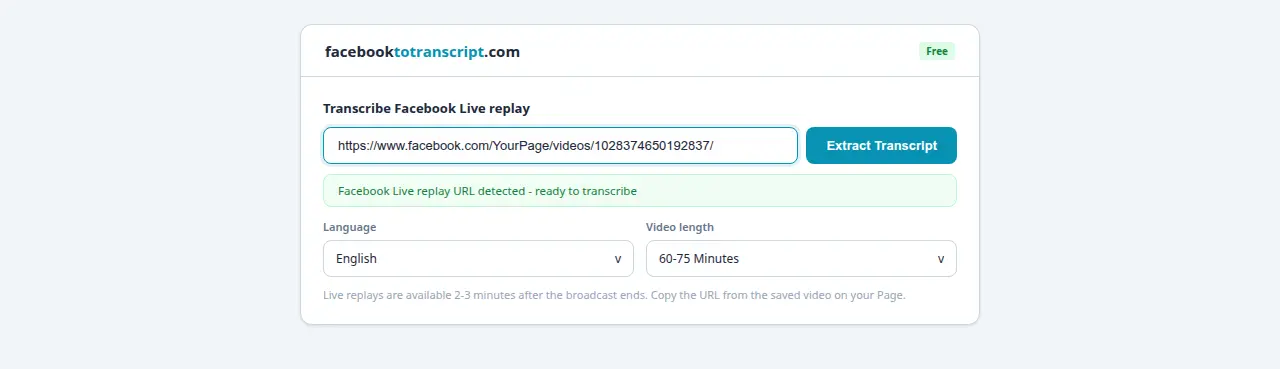
Why Facebook Live Replays Are Worth Transcribing
Facebook's own data shows Live videos generate six times more interactions than regular video uploads. That interaction spike happens during the broadcast. But the replay — sitting as an unindexed video file with no text on the page — is invisible to anyone who wasn't watching live. A 45-minute interview, a product Q&A, a teaching session: these are high-value recordings that most creators leave entirely undiscoverable.
Search engines don't index audio or video. They index text. A Live replay with no transcript can't rank for anything, no matter how good the content is. The same material published as a blog post can drive search traffic for years after the broadcast. That's the fundamental argument: converting a one-time live audience into a long-running search asset.
The numbers work out well. A one-hour Live transcript runs 8,000–10,000 words — comparable to a full feature article. One recording can realistically become a long-form blog post, 5–10 standalone social posts, an email newsletter section, SRT caption files for the replay, and searchable internal documentation. All from one URL and a few minutes of setup.
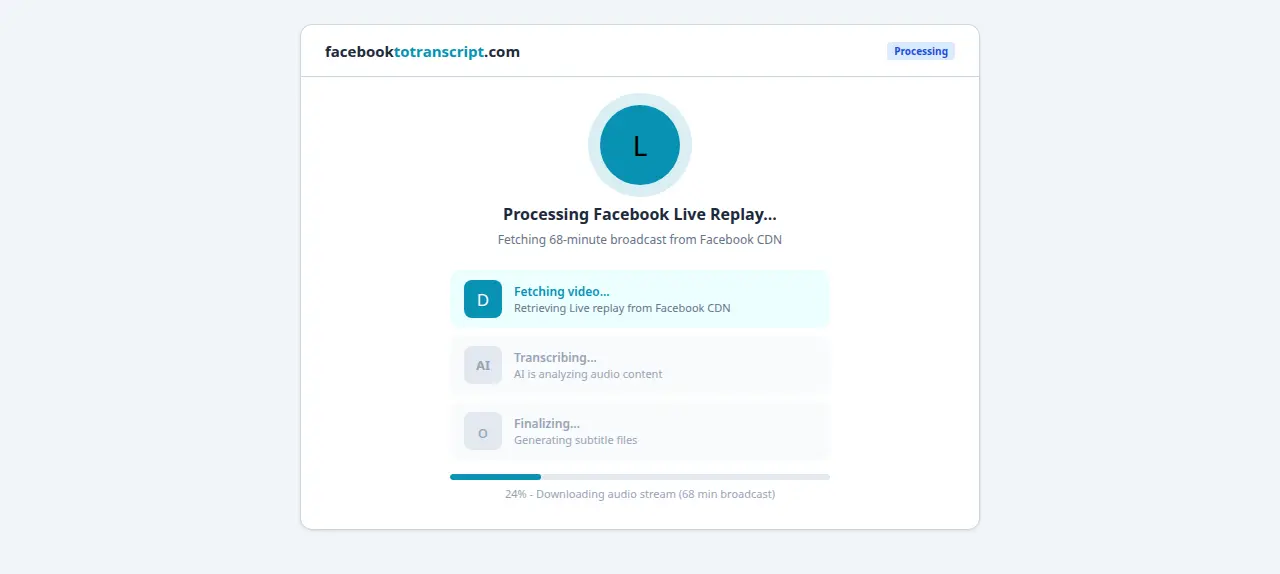
How to Transcribe a Facebook Live Replay: Step by Step
Step 1: Find the Replay URL
After your Live ends, Facebook saves it as a replay automatically. Navigate to the video, click Share, and select Copy Link. All of these URL formats work:
https://www.facebook.com/yourpage/videos/1234567890https://www.facebook.com/watch/?v=1234567890https://fb.watch/shortcodehttps://m.facebook.com/yourpage/videos/1234567890(mobile URL)
Step 2: Open the Tool and Paste the URL
Go to the Facebook to Transcript homepage. Paste the replay URL into the input field.
Step 3: Select the Language
Select the primary spoken language from the dropdown. If the broadcast mixed languages, choose the dominant one — the model handles code-switching reasonably well but benefits from knowing the baseline language.
Step 4: Transcribe and Review
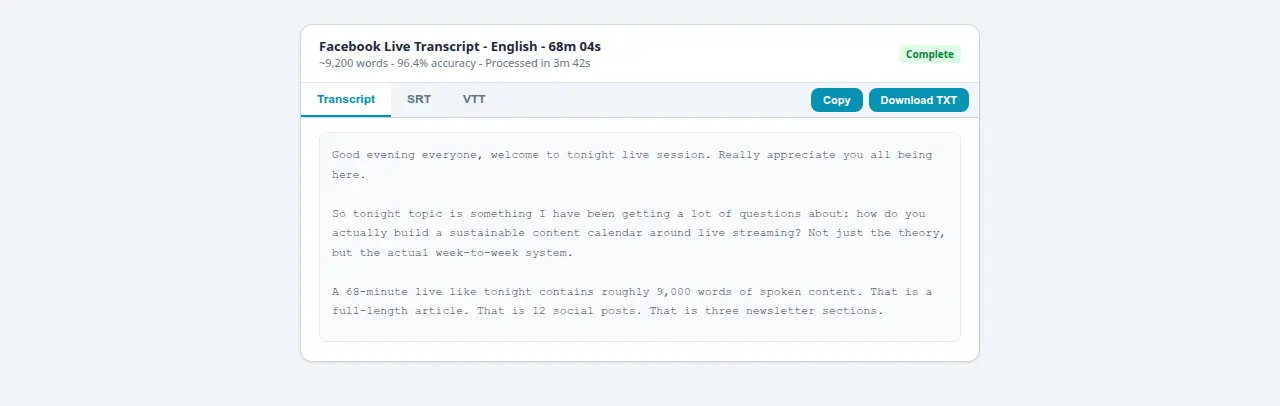
Click Transcribe. A 30-minute Live takes about 60–90 seconds to process. A 2-hour broadcast takes 4–6 minutes. When it finishes, scan for proper nouns, brand names, and technical terms — those are where the model occasionally slips. Download as TXT for editing, SRT for captions, or VTT for web-embedded players. See the SRT subtitle generator guide for uploading captions back to Facebook.
What Affects Accuracy on Live Recordings Specifically
Live audio varies more than pre-recorded video because conditions are less controlled. The model handles it well overall, but knowing the specific risk factors helps you plan your review:
- Microphone setup: A phone's built-in mic in a quiet room transcribes very well. An external lavalier mic makes a noticeable improvement. Bluetooth earbuds introduce compression that can reduce accuracy by a few percentage points.
- Background noise: Crowd noise, music, air conditioning, and outdoor sounds all compete with speech. The model filters noise well but has limits — plan for more corrections on loud-environment recordings.
- Speaking pace and clarity: Very fast speech or a strong regional accent in a less-common language will reduce accuracy. Standard conversational pace in a major language gives you 96–99%.
- Overlapping speakers: When two people talk simultaneously, the model picks one thread or merges both. For panel discussions and Q&A sessions, encourage turn-taking — it directly improves the transcript.
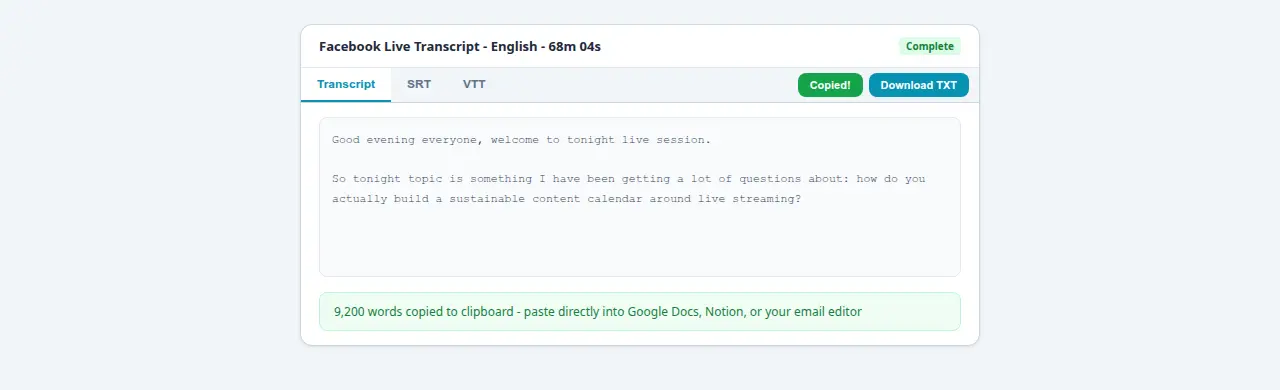
What to Do With a Facebook Live Transcript
The transcript is the raw material. Here's what to actually do with it:
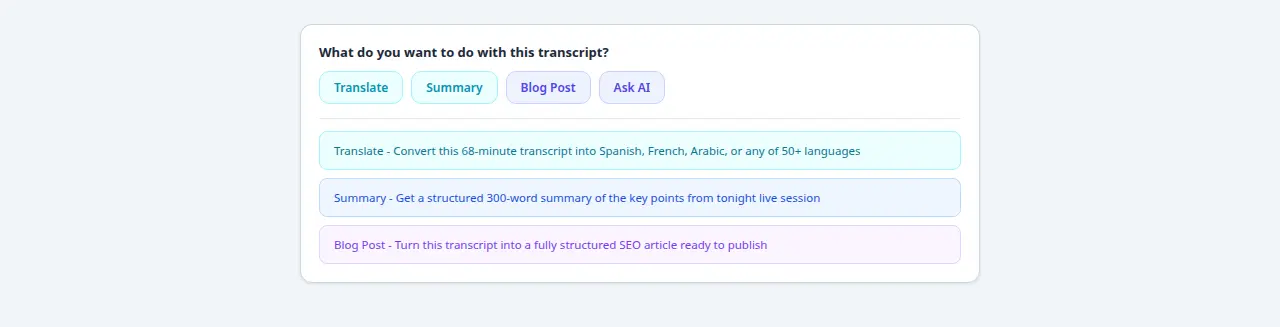
- Blog post: A 45-minute interview transcript is 6,000–8,000 words. Add subheadings at topic transitions, cut filler, and you have a structured long-form article. The audio-to-text converter guide covers the full editing workflow.
- Social media posts: Scan the transcript for the most quotable moments — sharp opinions, surprising stats, concise takeaways. Copy those sentences directly. One Live typically yields 5–10 standalone post drafts.
- Email newsletter: Summarize the 3–5 strongest points and include a link to the replay. The transcript gives you exact language to work from rather than rewriting from memory.
- Accessibility captions: Download the SRT and upload it to the Facebook video via Creator Studio. The SRT generator guide has the full upload steps.
- Internal documentation: For businesses using Facebook Live for team training or announcements, transcripts create searchable records. Someone who missed the Live can search the text in seconds rather than watching two hours of recording.
Troubleshooting Common Facebook Live Transcription Issues
The URL Returns an Error
Check that the replay is saved and publicly accessible. If you just ended the Live, wait 2–3 minutes — Facebook takes a moment to process the recording. If the URL redirects to a login page, the video's privacy is set to Friends or a restricted audience. See the private video guide for workarounds.
The Transcript Has Frequent Errors
Poor audio is the cause almost every time. Try selecting the language manually rather than relying on auto-detect. If the recording has genuinely bad audio, run it through a video editor to boost speech volume and reduce background noise before transcribing again. It makes a meaningful difference.
The Transcript Is in the Wrong Language
Auto-detect misfires most often when the broadcast opens with music or ambient crowd noise before any speech. Restart the job and manually select the correct language from the dropdown. The AI transcription guide explains why this happens and how the detection works.
Frequently Asked Questions
Can I transcribe a Facebook Live while it is still streaming?
No — the tool works with completed recordings. Once your Live ends and Facebook saves the replay (usually within a few minutes of going offline), copy that URL and paste it in. Real-time streaming transcription requires server-side infrastructure and is not supported here.
What is the maximum length for Facebook Live transcription?
No hard cap. A 5-minute stream and a 4-hour broadcast both work. Processing time scales with length — a 60-minute Live typically finishes in 2–4 minutes. Accuracy does not degrade toward the end of a long recording.
Does the tool handle multiple speakers in a Facebook Live?
Yes. All speech is processed regardless of how many people are talking. Speaker labels are not added automatically — the output is continuous text. For panel discussions or Q&A sessions, add [Host] or [Guest Name] labels manually at each speaker change. For a typical interview, this takes about 5–10 minutes.
What languages are supported for Facebook Live transcription?
Over 50 languages. Select the primary spoken language before processing — auto-detect works well for most broadcasts but can misfire when a recording opens with music or crowd noise before any speech begins.
Is the Facebook Live transcript downloadable?
Three formats are available: TXT (plain text, easiest for editing), SRT (timestamped subtitles for caption files), and VTT (web caption format for HTML5 players). All three are available immediately with no account required.
Ready to Convert Your Facebook Videos to Text?
Use our free AI-powered tool to transcribe any Facebook video in seconds.
Try the Free Transcription Tool