Free Facebook SRT Subtitle Generator: Create Closed Captions
Captions are no longer optional — a large share of Facebook videos play muted by default. This guide walks through the complete SRT workflow: generating the file from a Facebook video URL, understanding the format so you can edit it correctly, naming it the way Facebook requires, and troubleshooting the errors most people hit on first upload.
Rida Mehwish
Software Developer at Codingtron · Vehari, Pakistan
Builder of Facebook to Transcript. Writes about AI transcription, video accessibility, and practical workflows for content creators and researchers.
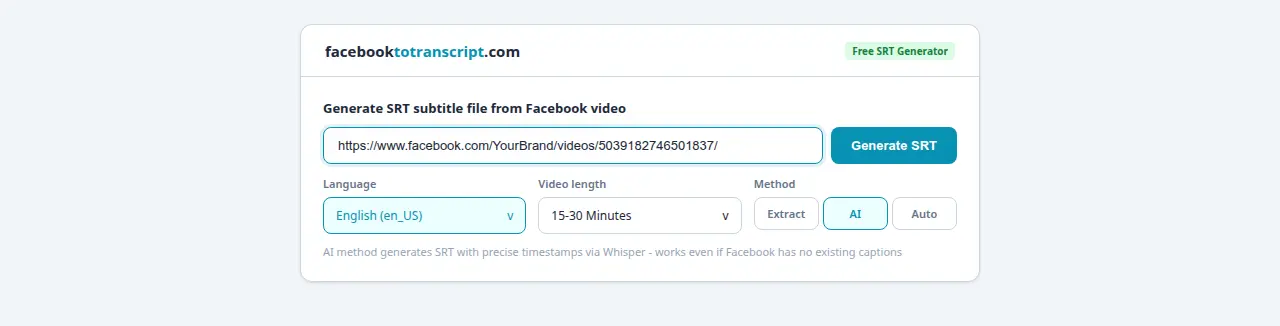
What an SRT File Actually Is (and Why It Matters for Facebook)
An SRT (SubRip Text) file is a plain text document. Nothing fancy — just sequence numbers, timestamp pairs, and caption text, formatted in a specific structure that video players understand. Here's what two entries look like:
1
00:00:04,200 --> 00:00:07,600
Welcome to today's live session.

2
00:00:07,800 --> 00:00:11,400
We're going to walk through
the new product launch.
That's the whole format. Each entry: a number, start and end timestamps in HH:MM:SS,mmm form, and caption text. Facebook reads that file and shows the right caption text at the right moment when a viewer clicks the CC button.
Why this matters: 85% of Facebook videos play without sound. Captions aren't a niche feature for a small accessibility minority — they're how most people experience your content. For deaf and hard-of-hearing viewers, non-native speakers, and anyone in a sound-sensitive environment, the CC button determines whether your video is watchable at all.
Beyond accessibility: the text in your SRT file contributes to how Facebook surfaces your video in search and discovery. For branded content covering specific topics, this is a real SEO benefit.
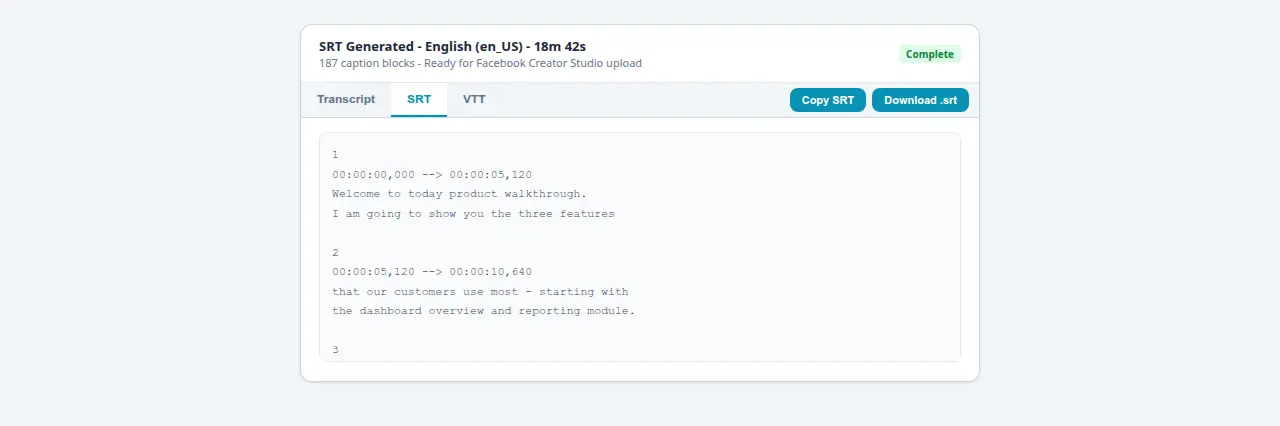
How to Generate an SRT File from a Facebook Video: Four Steps
Step 1: Get the Video URL
Navigate to the Facebook video. Click Share → Copy Link, or copy the URL from your browser's address bar. Standard video URLs, Facebook Live replay URLs, and Watch video URLs all work here.
Step 2: Paste and Process
Go to the Facebook to Transcript homepage, paste the URL, select the spoken language, and click Transcribe. For a 10-minute video this takes about 30 seconds. A 60-minute recording takes 2–4 minutes.
Step 3: Download the SRT
Click the SRT download button. The file comes with timestamps already in HH:MM:SS,mmm format — commas for milliseconds, not periods. Facebook requires this format specifically and will reject files that use periods.
Step 4: Rename the File for Facebook
Before uploading, rename the file to the format filename.languagecode.srt. The language code tells Facebook which caption track to assign it to:
| Language | Code | Example Filename |
|---|---|---|
| English (US) | en_US | myvideo.en_US.srt |
| Spanish (Latin America) | es_LA | myvideo.es_LA.srt |
| French (France) | fr_FR | myvideo.fr_FR.srt |
| German | de_DE | myvideo.de_DE.srt |
| Portuguese (Brazil) | pt_BR | myvideo.pt_BR.srt |
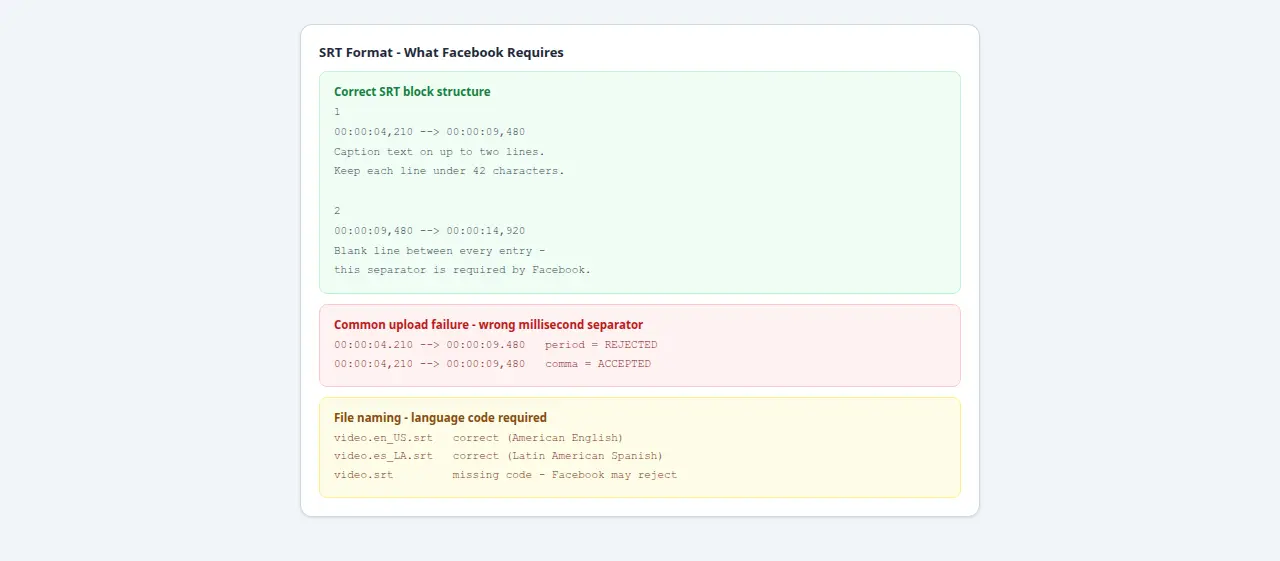
How to Upload an SRT File to Facebook
For New Video Uploads
When posting a new video, the Captions section appears in the upload dialog. Click Upload SRT File, select your renamed file, confirm the language, and publish. Captions attach from the moment the video goes live.
For Existing Videos via Creator Studio
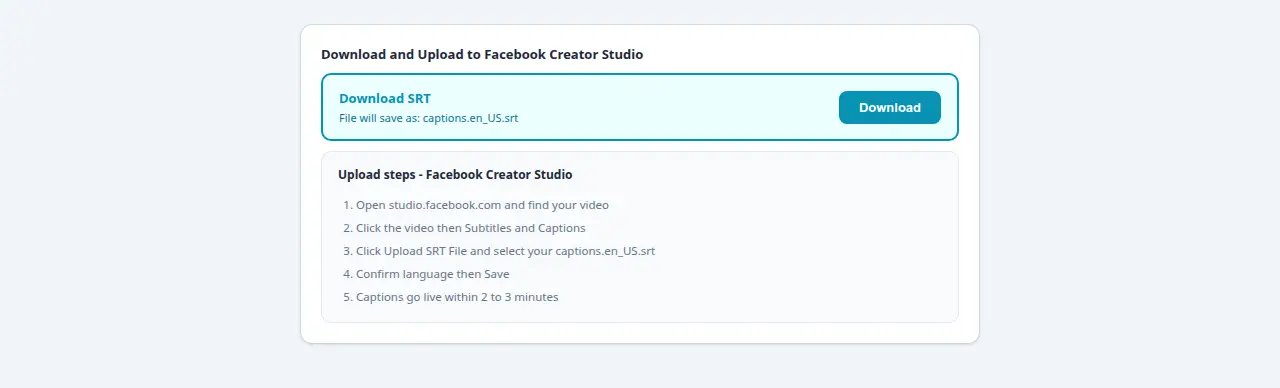
Open Creator Studio at studio.facebook.com. Find the video in your content library and click to open the editing panel. Select Subtitles and Captions, click Upload SRT File, select your file, confirm the language, and save. Captions typically go live within a few minutes.
For Live replay captioning specifically, see the Facebook Live to text guide. For Reels, Facebook doesn't support direct SRT upload — see the Reels transcription guide for the CapCut burn-in workflow.
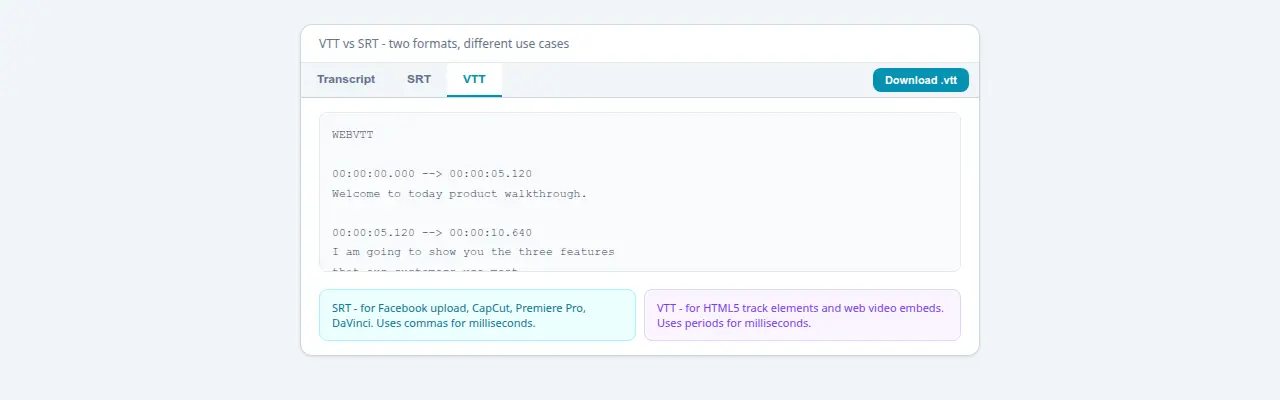
SRT Formatting: What Facebook Actually Requires
Most upload failures come from formatting errors that are easy to fix once you know what to look for:
- Comma, not period, for milliseconds:
00:01:23,456is correct.00:01:23.456will cause a rejection. This is the most common upload error. - Blank line between every entry: Missing blank line separators cause upload failure. Each caption block needs to be its own island, separated by an empty line.
- Line length under 42 characters: Comfortable on mobile. Two lines per entry maximum. Long lines wrap badly on smaller screens.
- Each caption displays for 1–7 seconds: Shorter than 1 second is unreadable. Longer than 7 seconds and viewers will have moved on from what you're saying.
- UTF-8 encoding (not UTF-8 with BOM): Save with UTF-8 to ensure special characters display correctly. The BOM variant causes display issues with some Facebook players.
- Split at natural speech pauses: Don't cut a caption in the middle of a phrase. Break at sentence boundaries or natural pauses where a speaker breathes.
Troubleshooting SRT Upload Errors
Facebook Rejects the File
Check four things in order: (1) filename format — must include the language code as filename.languagecode.srt; (2) timestamp separator — commas, not periods; (3) blank lines between entries — must be present; (4) file encoding — must be UTF-8 without BOM. Fix any of these in a plain text editor and retry. One of those four is almost certainly the cause.
Captions Are Out of Sync
If captions are consistently early or late by the same amount throughout the video, a fixed offset crept in — usually because the video was trimmed after transcription. Use Subtitle Edit (free, Windows) or Aegisub (free, cross-platform) to apply a global time shift to all entries at once. Both tools have a “synchronize subtitles” feature for exactly this.
Special Characters Display Incorrectly
Encoding issue. Open the file in VS Code and use Save As to explicitly select UTF-8 (not UTF-8 with BOM). On Windows Notepad, the encoding dropdown in the Save dialog shows both options — choose UTF-8.
Frequently Asked Questions
What is an SRT file and how does it work with Facebook?
SRT stands for SubRip Text — a plain text file with caption text, start/end timestamps, and sequence numbers. Each entry tells Facebook's video player what to display and when to show it. When a viewer clicks the CC button on your video, they are reading from your SRT file. Facebook accepts SRT uploads for standard video posts via Creator Studio.
Can I upload SRT files directly to Facebook?
Yes, for standard video posts. In Creator Studio, open the video, go to Captions, and upload the renamed SRT. For Reels, Facebook does not support direct SRT upload — you have to burn captions into the video file using an editor like CapCut or Premiere Pro before uploading.
How do I name my SRT file for Facebook upload?
Facebook requires a specific naming format: filename.languagecode.srt — for example, myvideo.en_US.srt for American English. If the language code is missing or wrong, Facebook will reject the upload or assign it to the wrong caption track. The format is lowercase language + underscore + uppercase region: en_US, es_LA, fr_FR, de_DE, pt_BR.
What is the difference between closed captions and subtitles?
Closed captions include non-speech audio descriptions like [applause] or [music playing], designed for deaf and hard-of-hearing viewers. Subtitles typically only transcribe spoken dialogue, assuming the viewer can hear other sounds. The SRT files generated here contain spoken content only — they are technically subtitles, though the terms are used interchangeably in most Facebook contexts.
Can I edit the generated SRT file before uploading?
Yes — SRT files are plain text. Open in Notepad, TextEdit, or VS Code, fix any errors, adjust timing, or add [non-speech descriptions]. Two technical rules: timestamps must use commas for milliseconds (00:01:23,456 not 00:01:23.456), and each entry block must be separated by a blank line. Break either of those and Facebook will reject the file.
Ready to Convert Your Facebook Videos to Text?
Use our free AI-powered tool to transcribe any Facebook video in seconds.
Try the Free Transcription Tool